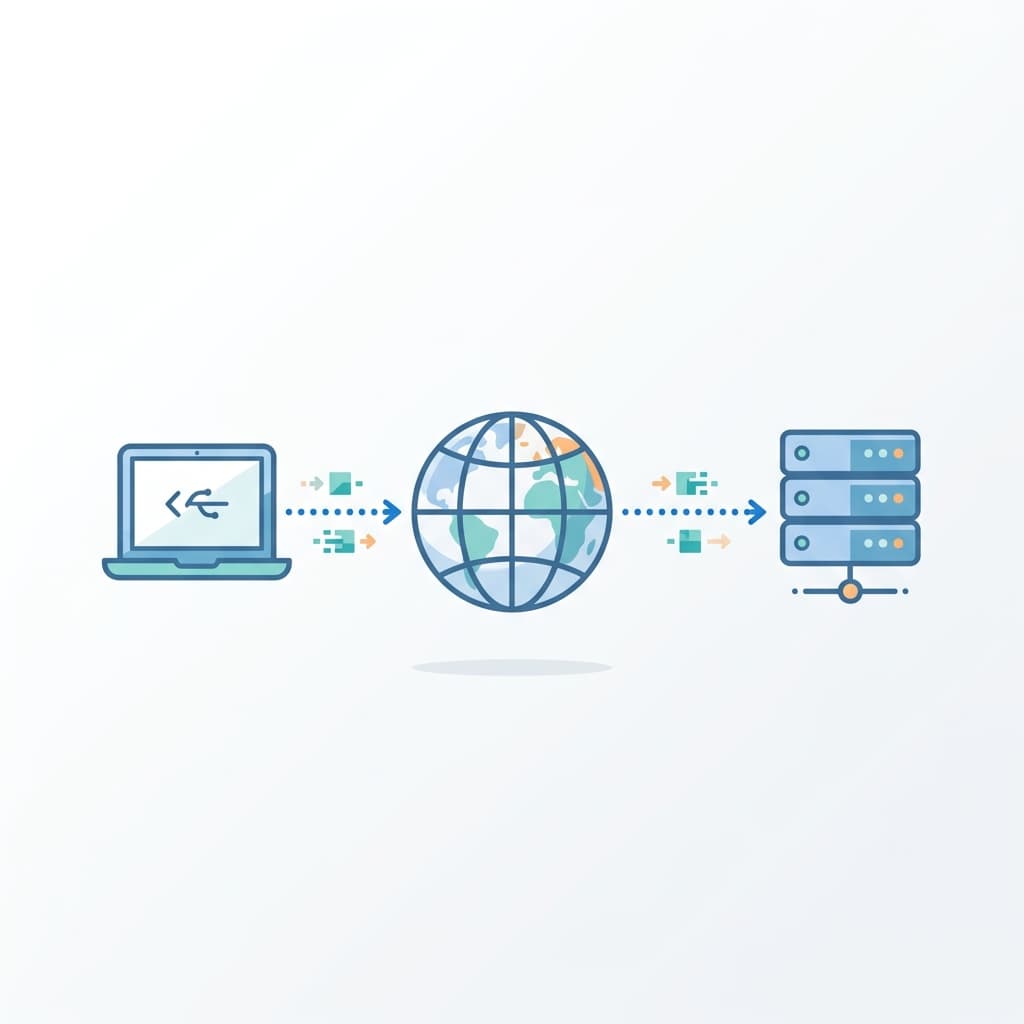
When I started working in DevOps, I could deploy apps, set up pipelines, and configure cloud resources - but I didn't really understand what was happening underneath. When a networking incident hit, I was guessing. Checking random things, restarting services, hoping something would fix itself.
The turning point was when I sat down and built a clear picture of how the internet actually works - how data moves from a browser to a server and back, what happens at each step, and where things can break. Once I had that mental model, debugging stopped feeling like guesswork.
I'm starting the DevOps series with this post because everything else - Linux, networking, cloud, containers, Kubernetes, CI/CD - builds on these fundamentals.
1. The Internet Is Physical
The first thing that surprised me was how physical the internet is. It is not an abstraction. It is cables, routers, and buildings.
Undersea cables
Over 500 submarine fiber optic cables carry about 99% of intercontinental data. Companies like Google, Meta, and Microsoft own or co-own many of these cables. When a cable gets damaged - ship anchors, earthquakes, or even shark bites - entire regions experience degraded connectivity. In 2008, cable cuts near Egypt disrupted internet access across the Middle East and parts of India for days. If your app's users are in India and your servers are in the US, your data is physically crossing the ocean floor.
Data centers
At each end of these cables are data centers - buildings full of servers, storage, and networking equipment. When you deploy to "the cloud," your code is running on a physical machine inside one of these buildings, connected to the internet backbone through layers of switches and routers.
ISPs and peering
Your home or office connects to the internet through an ISP (Internet Service Provider). ISPs connect to each other at IXPs (Internet Exchange Points) - physical locations where networks meet and exchange traffic directly. This peering is why a request from Hyderabad can reach a server in Virginia in under 200 milliseconds - it hops through a chain of networks that have agreed to carry each other's traffic.
Early on, when I was debugging latency issues, I assumed all slowness was in the application code. It took a
tracerouteshowing 14 network hops across three continents to realize that the physical path matters just as much.
2. IP Addresses - How Machines Find Each Other
Every device on the internet has an IP address. It is the only way machines locate each other.
IPv4
The original format - four numbers separated by dots, like 192.168.1.10. There are roughly 4.3 billion possible addresses. The global pool was exhausted years ago, which is why NAT and IPv6 exist.
IPv6
The newer format with a massively larger address space - 2001:db8::8a2e:370:7334. Adoption is growing but IPv4 still dominates in most production environments I've worked in.
Public vs private IPs
Your laptop doesn't have a public IP. Your router does. Inside your home or office network, devices use private IPs - ranges like 10.x.x.x, 172.16-31.x.x, or 192.168.x.x. These are not routable on the internet. When traffic leaves your network, your router translates the private IP to its public IP using NAT (Network Address Translation).
Your Laptop (192.168.1.5) → Router (NAT) → Public IP (49.37.x.x) → InternetThis is the same pattern you see in cloud networking. In Azure, AKS pods have private IPs inside a VNet. When they need to reach the internet, traffic goes through a NAT Gateway or a Load Balancer's outbound rules. Same concept, larger scale.
Why this matters in production
I once debugged an issue where random outbound API calls from pods started failing intermittently. Everything looked fine - the external API was healthy, the app was running. Turned out the NAT Gateway had run out of available source ports because too many concurrent connections shared the same public IP. The fix was adding more public IPs to the NAT Gateway. Understanding how NAT works was the only reason I could trace it - otherwise it just looks like the external API is unreliable.
3. DNS - The First Thing That Runs, the Last Thing You Suspect
DNS (Domain Name System) translates human-readable domain names into IP addresses. It is the very first step in every internet request, and when it breaks, everything breaks - often in confusing, partial ways.
How a DNS lookup works
When you type example.com in your browser:
- Browser cache - Checks if it already resolved this domain recently
- OS cache - The operating system checks its own DNS cache
- Resolver - If not cached, the request goes to a DNS resolver (your ISP's, or a public one like
8.8.8.8or1.1.1.1) - Root server - The resolver asks a root nameserver, "Who handles
.com?" - TLD server - The root points to the
.comTLD (Top Level Domain) server - Authoritative server - The TLD server points to the authoritative nameserver for
example.com, which returns the actual IP
Browser → OS → Resolver → Root → TLD (.com) → Authoritative → IP addressThis chain usually completes in under 50 milliseconds. But each step caches the result for a TTL (Time To Live) duration. This caching is why DNS changes don't propagate instantly - and why half your servers might resolve to the old IP while the other half see the new one.
DNS record types that matter
- A - Maps a domain to an IPv4 address
- AAAA - Maps a domain to an IPv6 address
- CNAME - Alias that points one domain to another domain
- NS - Which nameserver is authoritative for this domain
- MX - Mail server records
- TXT - Text records, used for domain verification, SPF, and DKIM
Why DNS causes so many production issues
DNS failures are partial and confusing. One resolver sees the new record, another still caches the old one. Your laptop resolves correctly, but the production pod doesn't because it uses a different resolver chain.
In Kubernetes, pods rely on CoreDNS for all name resolution - both internal services (my-svc.my-namespace.svc.cluster.local) and external domains. If CoreDNS crashes, every service-to-service call in the cluster fails simultaneously. I've seen this happen, and my first assumption was "the app is broken" when the real problem was cluster DNS.
# Check from multiple resolvers during an incident
dig +short api.example.com
dig @8.8.8.8 api.example.com
dig @1.1.1.1 api.example.com
I've learned to check DNS first in every incident. It's surprising how often that's where the problem actually is.
4. TCP and UDP - How Data Actually Moves
Data doesn't travel as one big chunk across the internet. It gets broken into small pieces called packets. Each packet travels independently through the network and gets reassembled at the destination. Two transport protocols handle this - TCP and UDP.
TCP - Reliable delivery
TCP (Transmission Control Protocol) guarantees that data arrives completely and in the correct order. It does this through a three-step handshake before any data is sent:
Client → SYN → Server
Client ← SYN-ACK ← Server
Client → ACK → Server
After this handshake, both sides exchange data. If a packet is lost, TCP retransmits it. If packets arrive out of order, TCP reorders them. This is why HTTP, SSH, database connections, and most services use TCP - reliability matters more than raw speed.
When TCP fails, you see clear symptoms - connection timeouts, retransmits, handshake failures. These are loud and your monitoring will catch them.
UDP - Fast delivery
UDP (User Datagram Protocol) skips the handshake entirely. It sends packets and hopes they arrive. No retransmission, no ordering. This makes it faster but unreliable.
DNS queries, video streaming, VoIP, gaming, and telemetry use UDP because a dropped packet is less costly than waiting for a retransmit. A missing video frame is better than a frozen stream.
When UDP fails, the symptoms are silent - no errors, no timeouts, just missing data. I once spent an hour wondering why metrics from a service weren't appearing in Grafana. The service was healthy, the metrics endpoint worked locally. Turned out a firewall rule was silently dropping the UDP telemetry packets. No errors in the app logs - just empty dashboards.
TCP failures are loud. UDP failures are silent. Knowing this difference has saved me a lot of debugging time.
5. HTTP and HTTPS - The Application Layer
Once the TCP connection is established, the browser sends an HTTP request to the server. This is the protocol that powers the web.
Anatomy of an HTTP request
GET /blog/how-internet-works HTTP/1.1
Host: shaikahmadnawaz.dev
Accept: text/html- Method -
GET(read),POST(create),PUT(update),DELETE(remove) - Path - The resource being requested
- Headers - Metadata (host, content type, authentication, cookies)
Anatomy of an HTTP response
HTTP/1.1 200 OK
Content-Type: text/html
Content-Length: 4523

<html>...</html>- Status code -
200(success),301(redirect),404(not found),500(server error),502(bad gateway),503(service unavailable) - Headers - Metadata about the response
- Body - The actual content
Understanding status codes matters during incidents. A 502 from a load balancer means the backend didn't respond - it's a different problem than a 500, which means the backend responded but the app threw an error. A 503 usually means the service exists but is overloaded or in maintenance. Each points to a different place to look.
HTTPS - HTTP with encryption
HTTPS adds TLS (Transport Layer Security) on top of HTTP. Before any application data is exchanged, a TLS handshake happens:
- The server presents its certificate
- The client verifies the certificate is valid and trusted
- Both sides agree on encryption keys
- All data from this point is encrypted
Without TLS, anyone between you and the server - your ISP, the coffee shop Wi-Fi, any router along the path - can read and modify your data. In production, TLS is non-negotiable. Service-to-service communication inside a cluster should use mTLS (mutual TLS) where possible.
TLS breaks in three ways - and I've run into all three:
- Incomplete certificate chain - The cert is valid but the intermediate certificate is missing. Browsers sometimes fill in the gap, but
curland server-to-server calls don't. - Hostname mismatch - The certificate was issued for
api.example.combut the request hitsapi-internal.example.com. - Expired or time-drifted certificate - The cert expired, or the server clock is off.
6. The Full Journey - What Happens When You Type a URL
Let's trace it end to end. You type https://shaikahmadnawaz.dev/blog and hit Enter.
Step 1 - DNS resolution
Your browser resolves shaikahmadnawaz.dev to an IP address by walking the DNS chain.
Step 2 - TCP handshake
Your browser opens a TCP connection to that IP on port 443 (the default HTTPS port). The three-way SYN/SYN-ACK/ACK handshake establishes the connection.
Step 3 - TLS handshake
The server presents its TLS certificate. Your browser verifies the chain of trust. Encryption keys are negotiated. The connection is now secure.
Step 4 - HTTP request
Your browser sends GET /blog HTTP/1.1 over the encrypted connection.
Step 5 - Server processing
The server receives the request. In my case, Vercel's edge network routes it to a Next.js server that renders the blog page.
Step 6 - HTTP response
The server sends HTTP/1.1 200 OK with the HTML content.
Step 7 - Rendering
Your browser parses the HTML, discovers additional resources (CSS, JavaScript, images, fonts), and makes additional HTTP requests for each one.
Step 8 - Connection reuse
With HTTP/2 or HTTP/3, the same connection is reused for all these subsequent requests instead of opening new TCP handshakes for each one.
DNS → TCP → TLS → HTTP Request → Server → HTTP Response → RenderThis entire flow happens in under a second for most websites. But every step is a potential failure point. If DNS returns the wrong IP, the TCP handshake connects to the wrong server. If the TLS certificate is wrong, the browser shows a security warning. If the server returns a 502, the load balancer is misconfigured. Understanding the flow tells you exactly where to look.
7. Ports - How Services Share a Machine
A single server can run multiple services, but they all share one IP address. Ports solve this - each service listens on a different port number (0-65535).
- 22 - SSH
- 53 - DNS
- 80 - HTTP
- 443 - HTTPS
- 3306 - MySQL
- 5432 - PostgreSQL
- 6379 - Redis
- 3000, 5000, 8080 - Common app server ports
When you connect to https://example.com, your browser is actually connecting to example.com:443. The port is implied for well-known protocols.
Think of the IP address as the building address and the port as the apartment number. The IP gets you to the machine, the port gets you to the service.
One gotcha I've hit - a service binds to 127.0.0.1:8000 instead of 0.0.0.0:8000. Local curl works perfectly, but nothing external can reach it. Always check the bind address, not just the port:
ss -tlnp | grep 80008. Routing - How Packets Find Their Way
Data doesn't travel in a straight line from your laptop to a server. It hops through multiple routers, each one deciding where to forward the packet next.
Switches
Operate at the local network level. They forward data to the right device within the same network using MAC addresses. Your home network has one.
Routers
Connect different networks together. Each router maintains a routing table - a map that says "to reach this network, forward to this next hop." When a packet arrives, the router looks at the destination IP and forwards it accordingly.
How routing works across the internet
Packets can take different paths through the internet to reach the same destination. This is by design - if one path fails, traffic reroutes. Internet routers use BGP (Border Gateway Protocol) to share routing information and find the best path.
traceroute shaikahmadnawaz.devThis command shows every hop your packet takes. Each line is a router. You can see where latency is added or where packets get dropped. This is my first check when debugging cross-region latency.
9. CDNs - Serving Content From the Edge
A CDN (Content Delivery Network) is a distributed network of servers that caches content closer to users. Without a CDN, every request from Mumbai to a server in Virginia pays the full round-trip latency. With a CDN, static content (HTML, CSS, JavaScript, images) is served from a nearby edge server.
My site runs on Vercel, which has its own edge network. When you load a page, the HTML is served from the nearest Vercel edge location, not from a single origin server.
CDNs help with four things:
- Latency - Content served from a nearby edge node
- Bandwidth - The origin server handles fewer requests
- Availability - If the origin goes down, cached content can still be served
- DDoS protection - CDN providers absorb attack traffic at the edge before it reaches your origin
10. How This Connects to Everything Else
Every concept in DevOps maps back to these fundamentals:
- Debugging network issues means knowing which layer is failing - DNS? TCP? TLS? Application? The networking post covers a systematic troubleshooting workflow.
- Linux troubleshooting means understanding ports, processes, and packet flow on a server. Covered in the Linux troubleshooting post.
- Cloud networking - VPCs, subnets, NSGs, NAT, private endpoints - is these same concepts implemented in a provider's infrastructure. Covered in the cloud and Azure post.
- Kubernetes networking adds another layer - pod IPs, service discovery, CoreDNS, ingress controllers - all built on TCP/IP, DNS, and HTTP.
- TLS and certificates show up everywhere - load balancers, ingress controllers, service-to-service communication, and database connections.
The rest of the series goes deep into each of these areas with real production context.
Common Mistakes I've Made
- Assuming all latency is in the application - Sometimes the code is fine, but the network path adds 200ms that you can't optimize away without moving your infrastructure closer to users.
- Not checking DNS during incidents - I've wasted time debugging application code when the real issue was stale DNS records or a crashed CoreDNS pod.
- Confusing TCP timeout with TCP refused - Timeout means packets aren't reaching the destination (routing, firewall). Refused means they are, but nothing is listening (service down, wrong port). They point to completely different fault domains.
- Ignoring the full TLS chain - When I saw SSL errors, I used to assume the certificate expired. But it can also be a missing intermediate or a hostname mismatch. Checking the full chain first saves time.
- Debugging the app before checking the network - If
pingworks butcurldoesn't, the problem is above the network layer. Ifpingfails, the application logs won't help yet.
Key Takeaways
- The internet is physical - Cables, routers, data centers, and ISP agreements
- IP addresses are how machines find each other - Public for the internet, private for internal networks, NAT to bridge them
- DNS is the first step and the most common silent failure - Query multiple resolvers during incidents
- TCP guarantees delivery, UDP prioritizes speed - Know which protocol your services use and how each fails
- HTTP is the application protocol - Status codes like
502and500point to different problems - HTTPS is non-negotiable - TLS protects data in transit and breaks in three ways - chain, hostname, expiry
- Ports separate services on the same machine - Check the bind address, not just the port number
- Packets hop through routers - Use
tracerouteto see the path and find where latency hides - CDNs reduce latency - Serve content from the edge, not from a single origin
Building this mental model changed how I approach every infrastructure problem. The tools keep changing, but the fundamentals stay the same.